Whistle 移动端和桌面端详细配置指南
Whistle 移动端和桌面端详细配置指南
1. 安装nodejs
2. 安装whitstle
npm i whistle -g
# 两个比较有用的插件
# 用于根据指定目录文件变化自动刷新指定页面的插件
npm i whistle.livereload -g
# 集成eruda和vConsole等调试H5页面工具的插件
npm i whistle.inspect -g
3.启动whitstle
w2 start 可以看到shell里的输出
[i] whistle@2.5.7 started [i] 1. use your device to visit the following URL list, gets the IP of the URL you can access:http://127.0.0.1:8899/http://10.66.34.22:8899/ Note: If all the above URLs are unable to access, check the firewall settings For help see https://github.com/avwo/whistle [i] 2. configure your device to use whistle as its HTTP and HTTPS proxy on IP:8899 [i] 3. use Chrome to visit http://local.whistlejs.com/ to get started
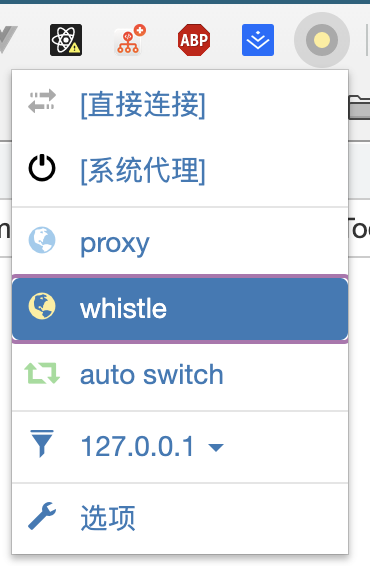
4. 配置chrome插件 Proxy SwitchyOmega
添加至Chrome
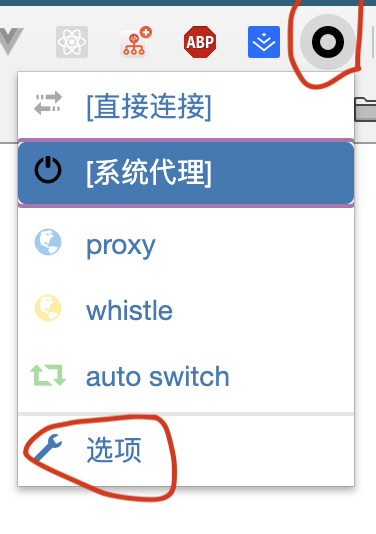
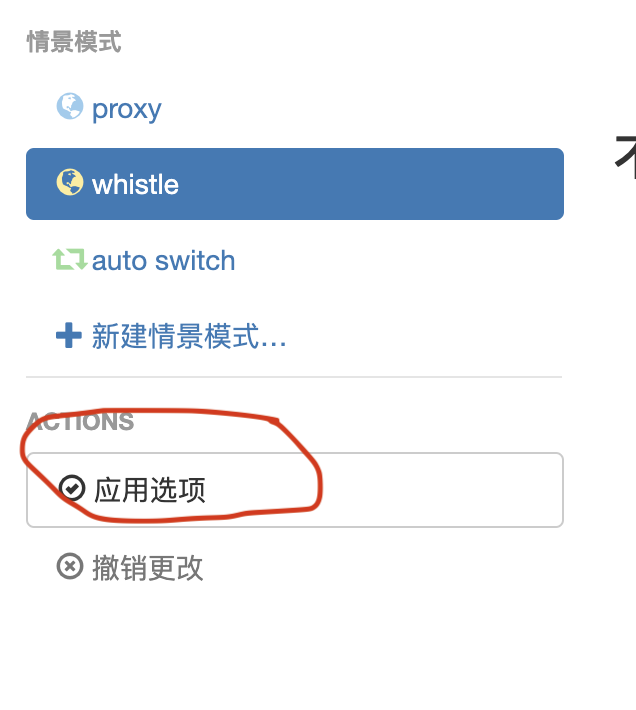
新建场景
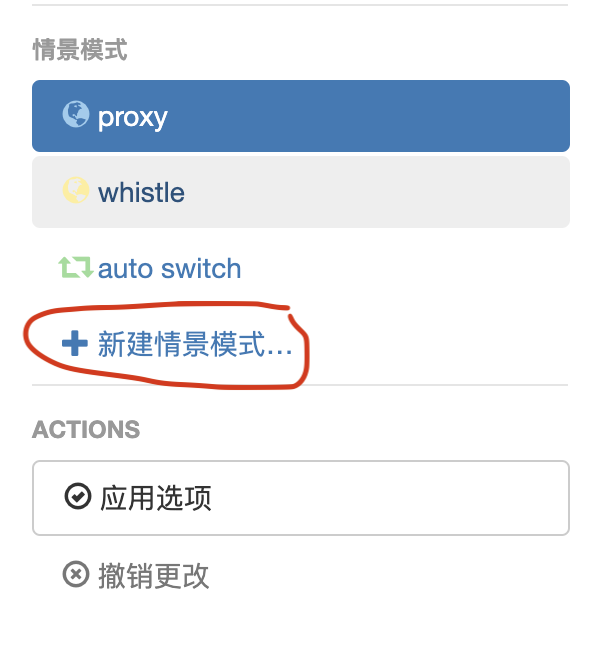
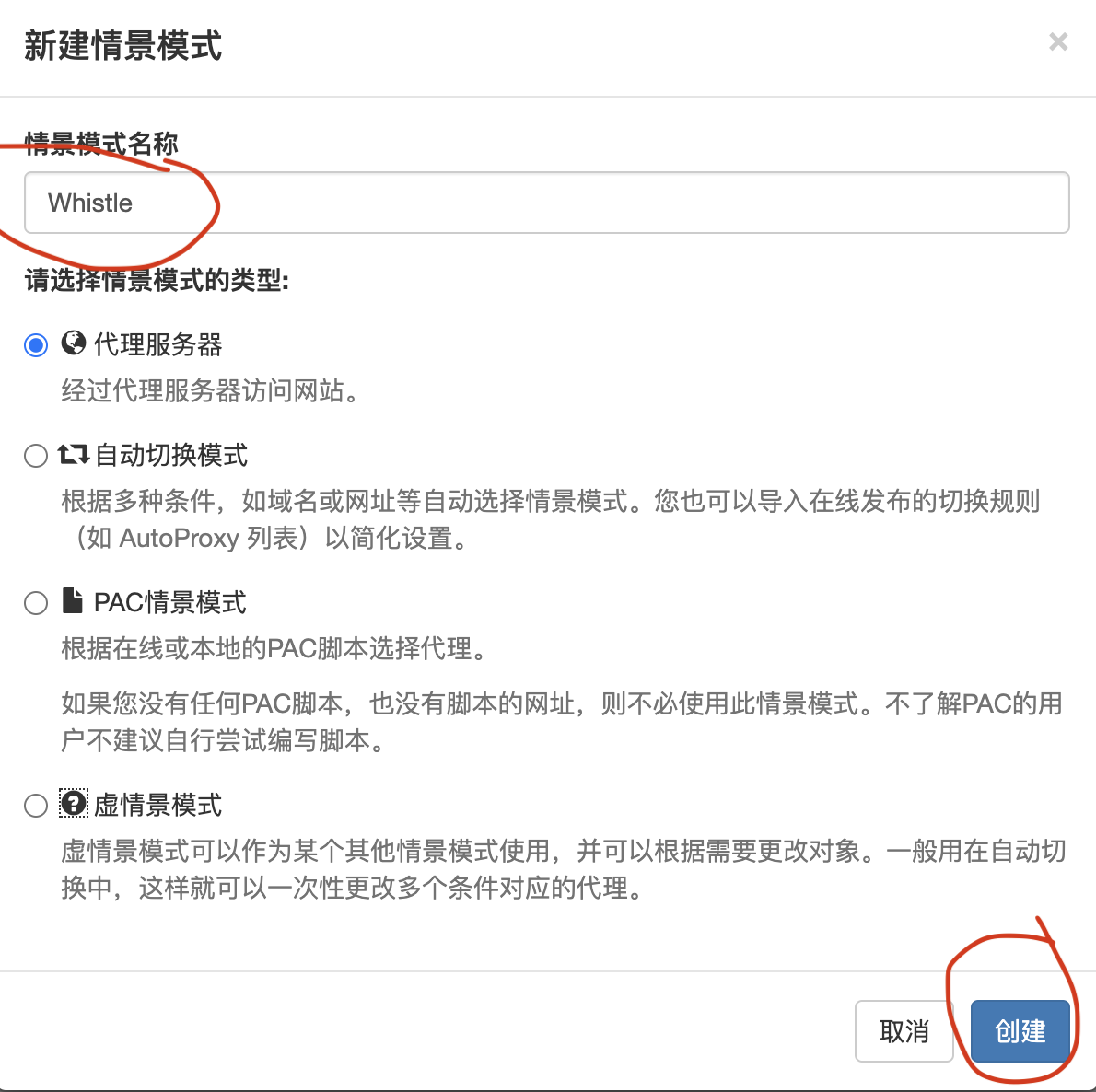
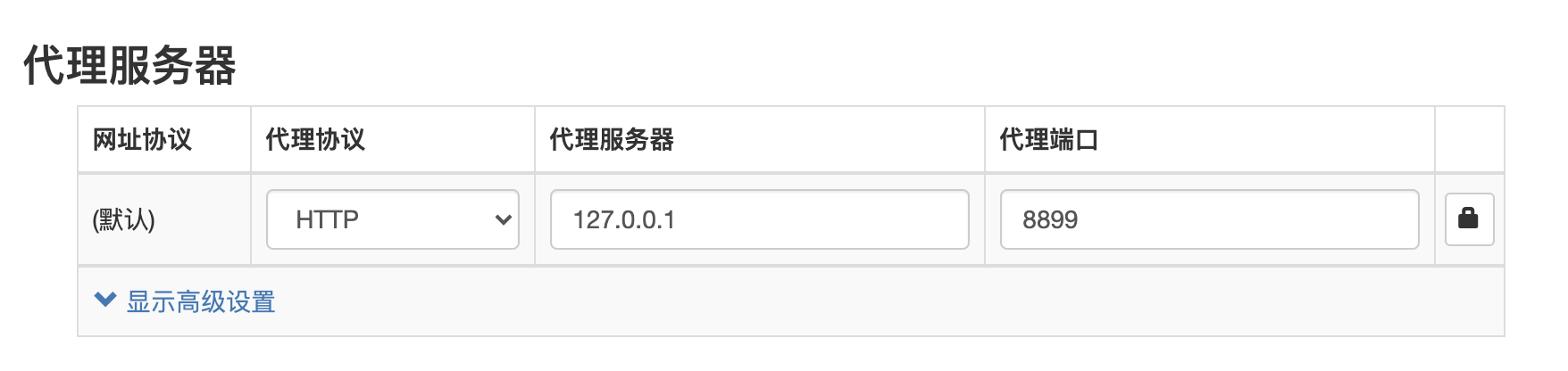
配置完成后点击应用选项
5.开启https拦截

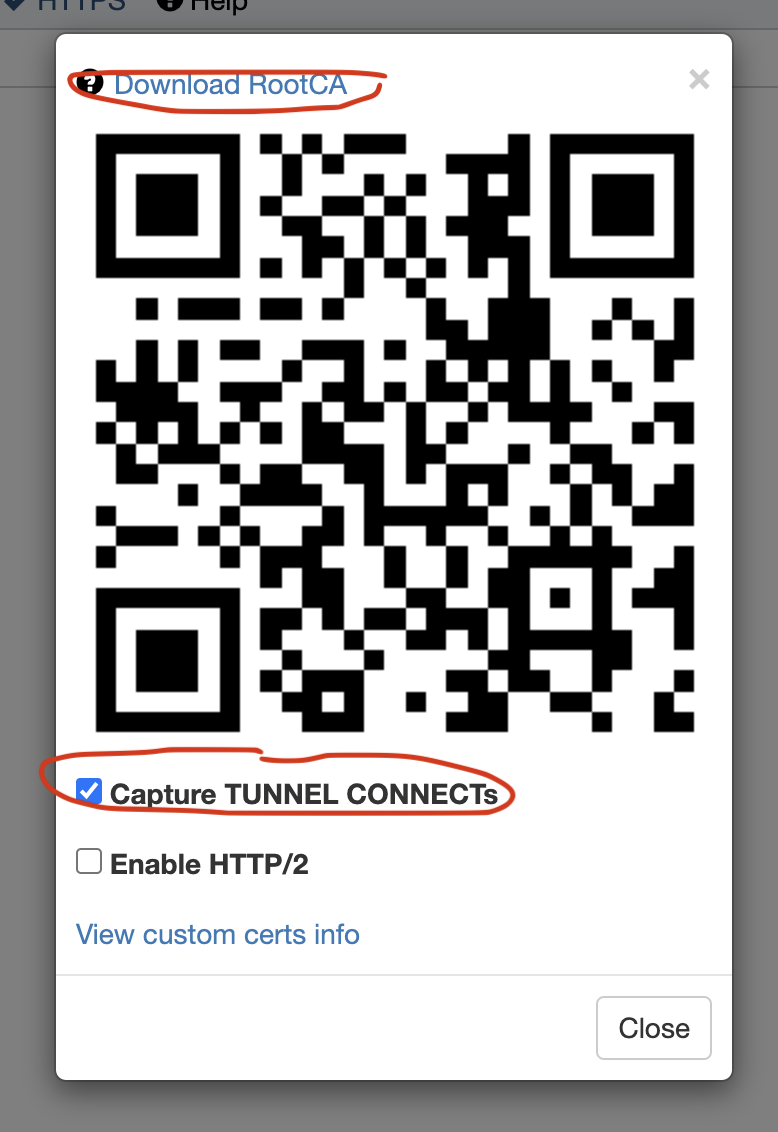
双击安装 rootCA.crt 证书
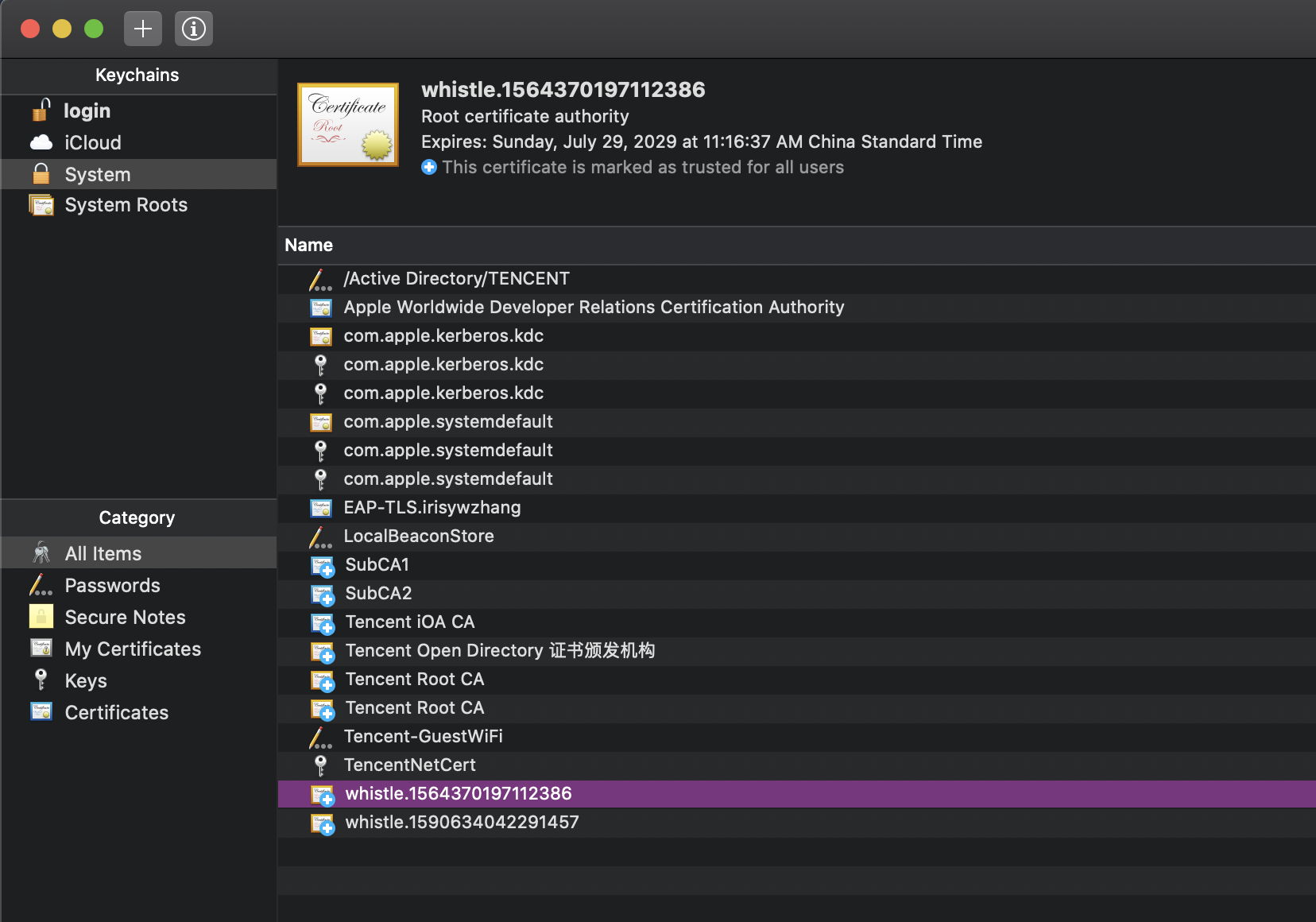
双击该证书,设置为 Always Trust
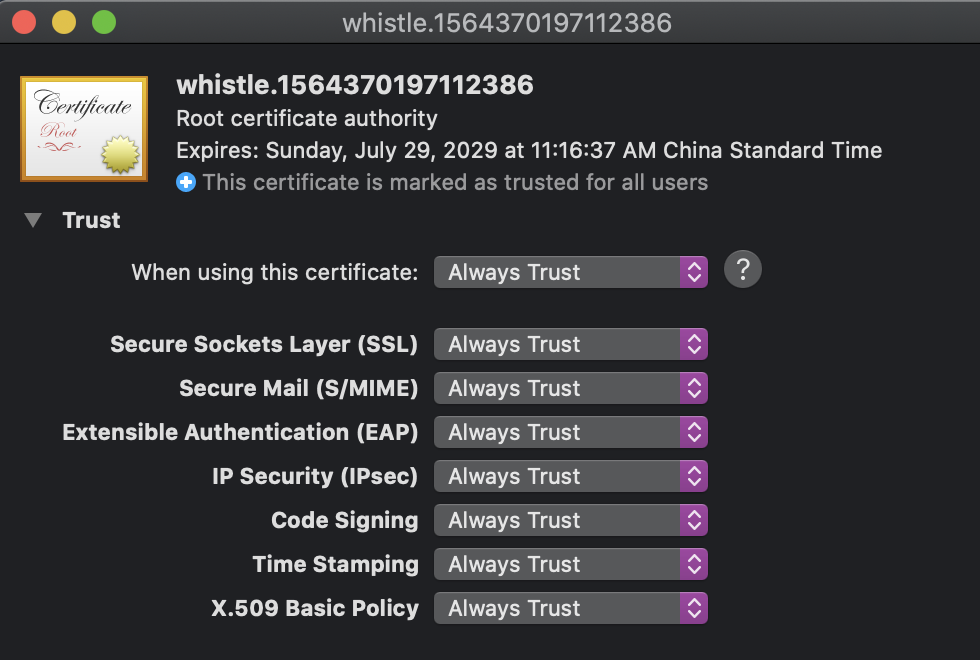
配置好后选择whistle代理即可
移动端iOS配置
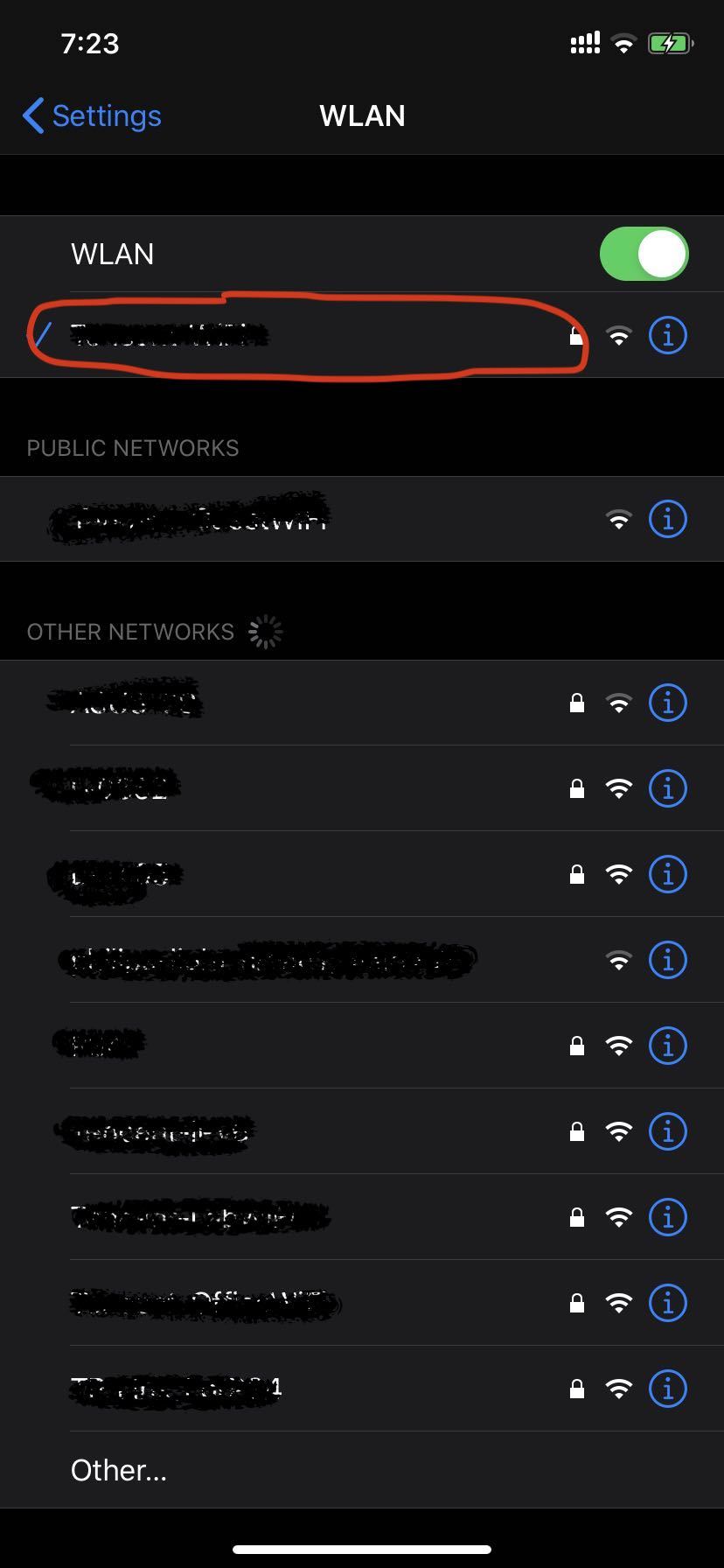
点击自己连接的Wifi
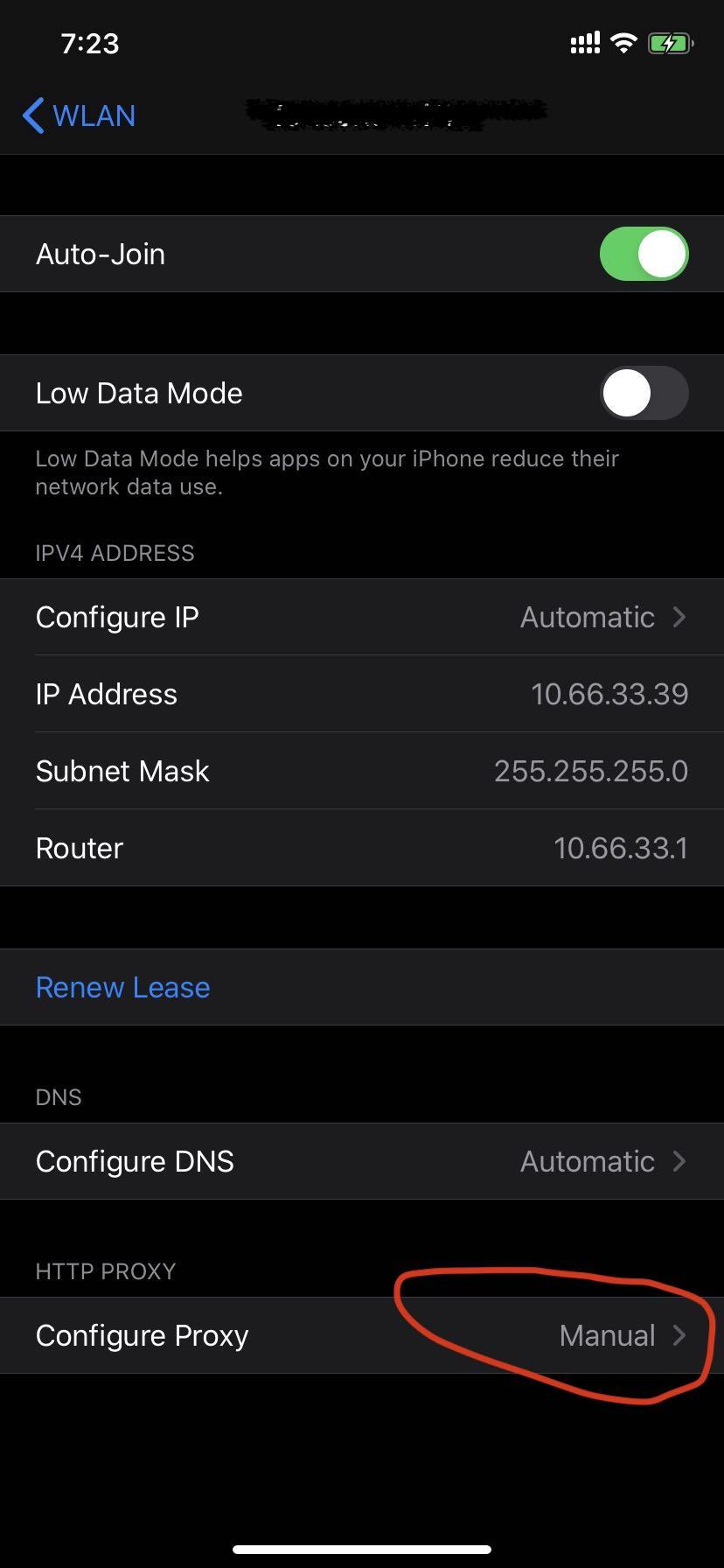
配置代理
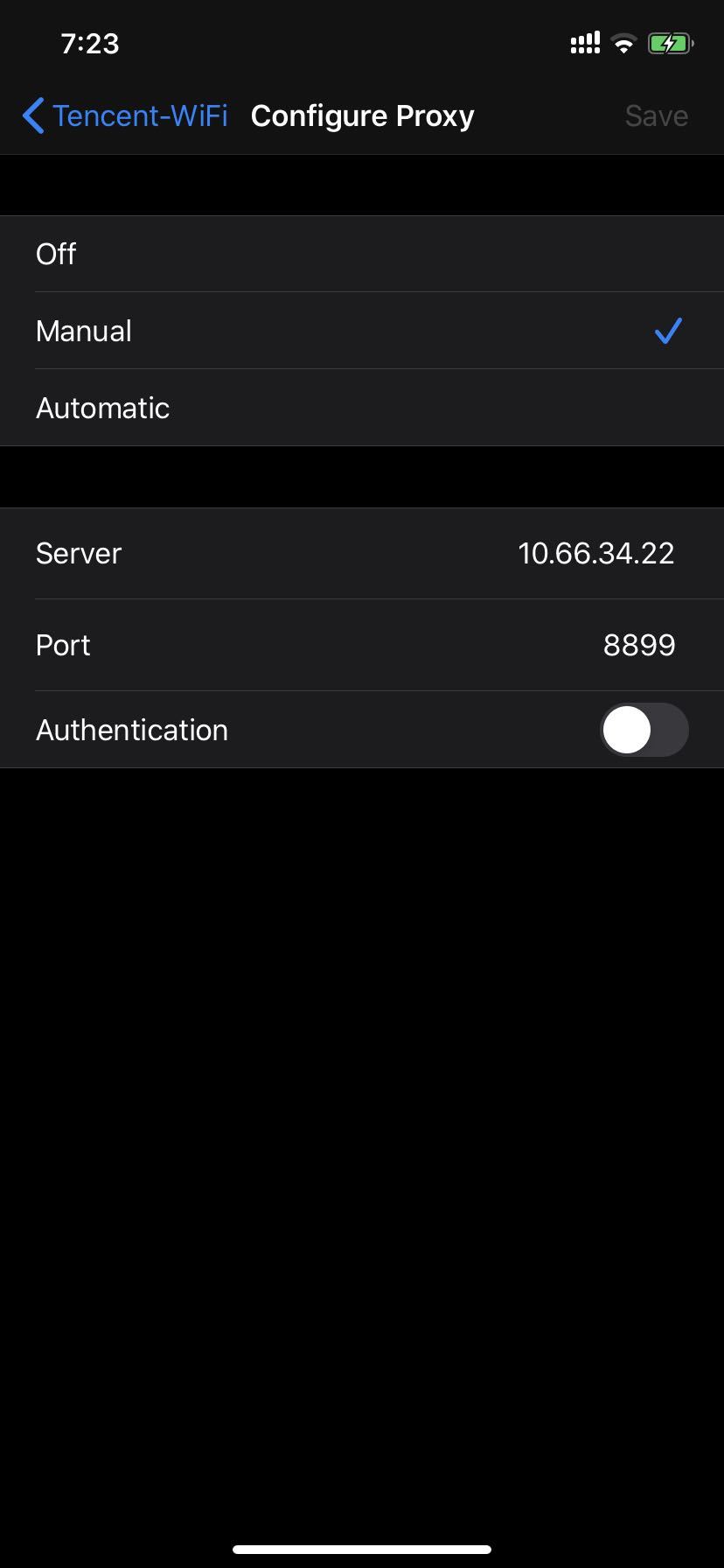
然后就可以在浏127.0.0.1:8899中看到手机访问的信息
移动端 iOS 配置 HTTPS
首先手机扫码下载
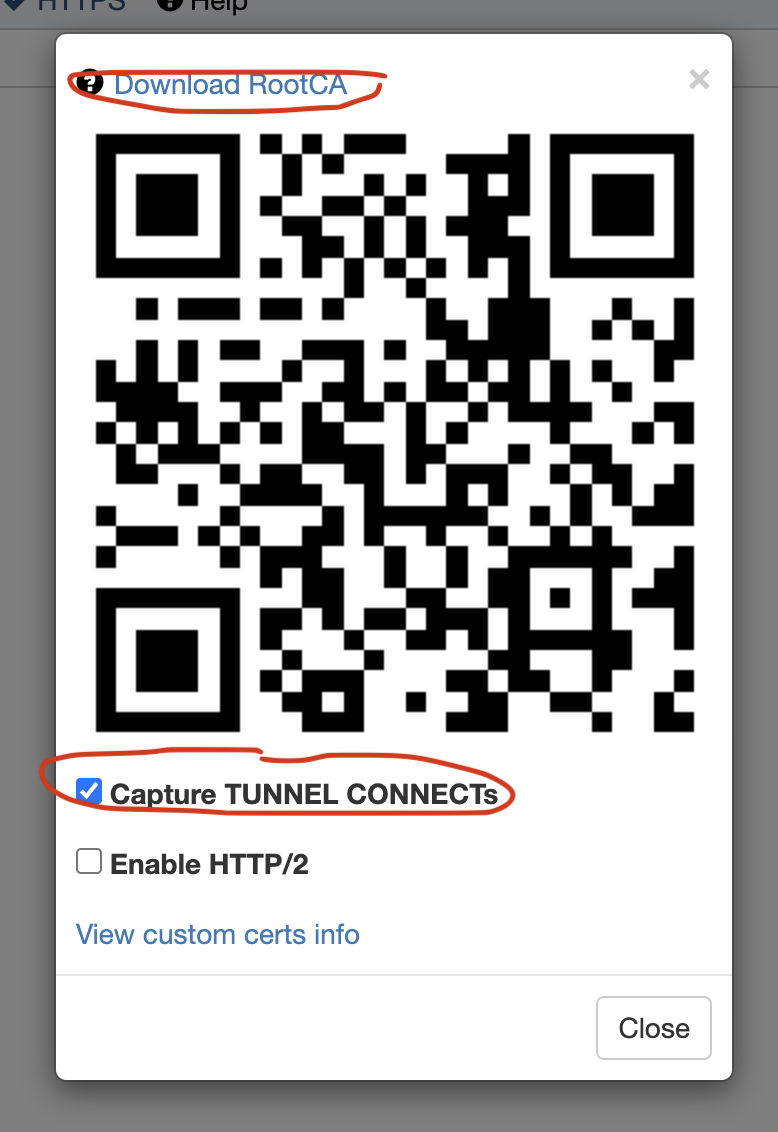
Settings > General > About > Certificate Trust Testings设置 > 通用 > 关于本机 > 证书信任设置 > 找到whistle证书打开信任
Android
小米
1、手机配置好wifi代理,然后使用 chrome 浏览器 输入 rootca.pro 下载证书(本机自带浏览器会下载失败)
2、设置 -> 更多设置 -> 系统安全 -> 加密与凭据 -> 从存储设备安装 -> 点击rootCA.crt安装 -> 输入锁屏密码
移动端配置增加vConsole调试
npm i whistle.inspect -g
安装好 whistle.inspect 插件,可以很容易添加调试工具
在rules里面添加 pattern whistle.inspect:// 是添加vConsole
在rules里面添加 pattern whistle.inspect://e 是添加eruda
添加完成后,此时使用手机浏览器访问所有网站都会添加上调试工具了。